
Introduction
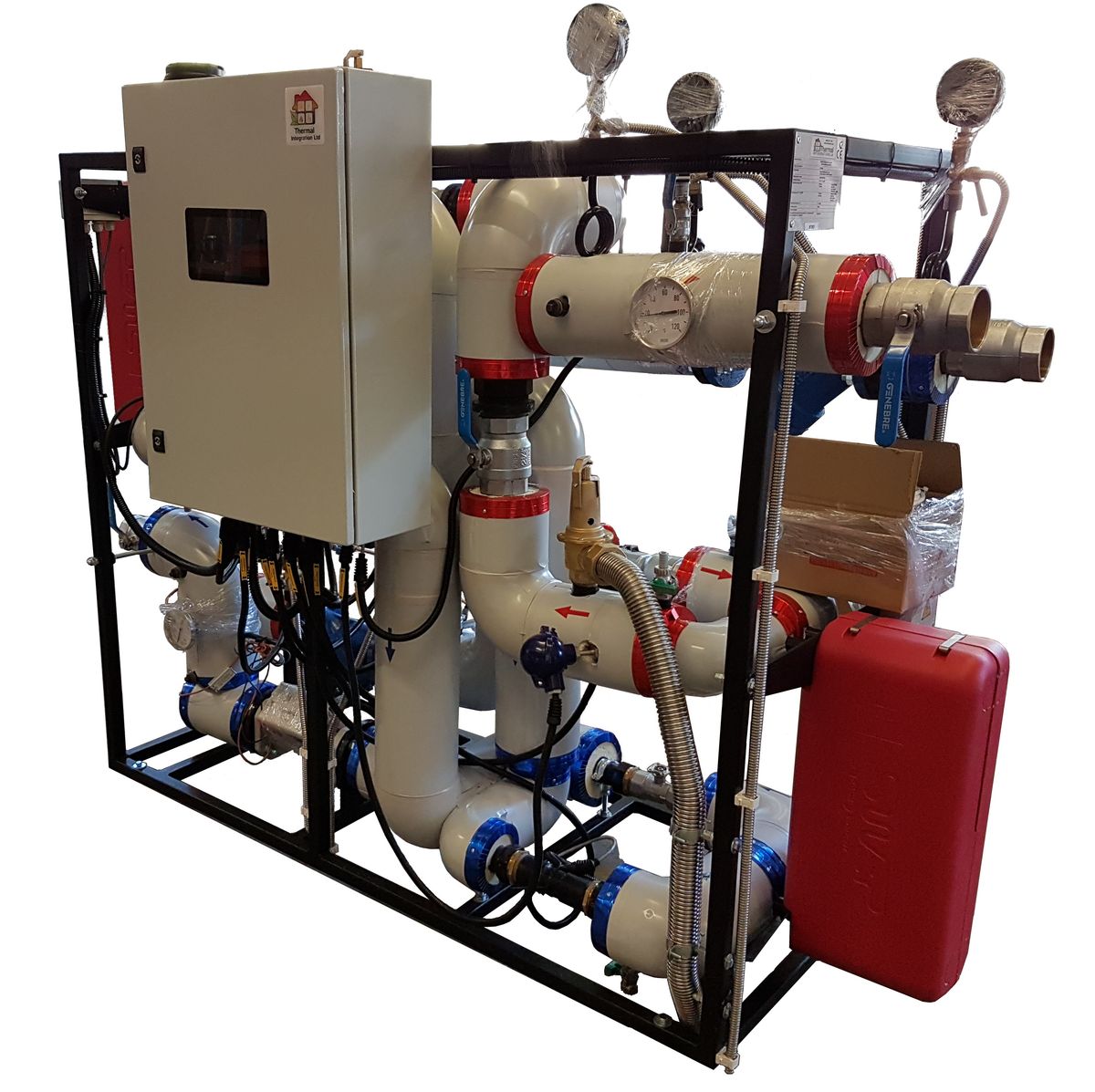
This page is a technical repository relating to our range of substations fitted with Node-RED control panels.
Substation Product Overview
Click here to explore the Substation Product Overview.
Documents
Node-RED Dashboard
Touch Screen Dashboard
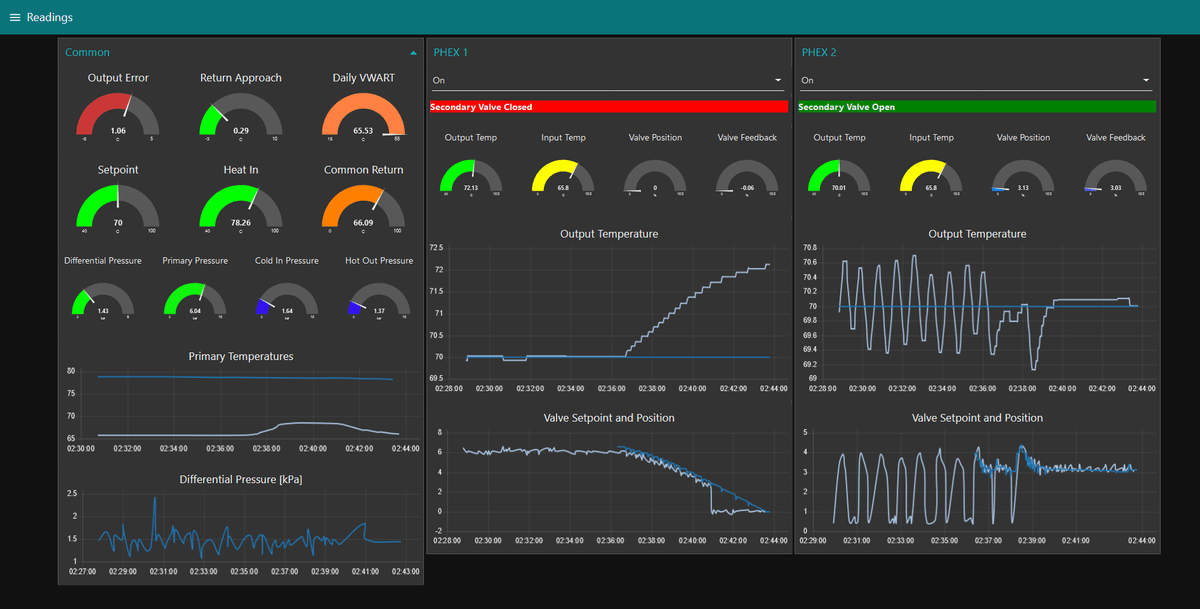
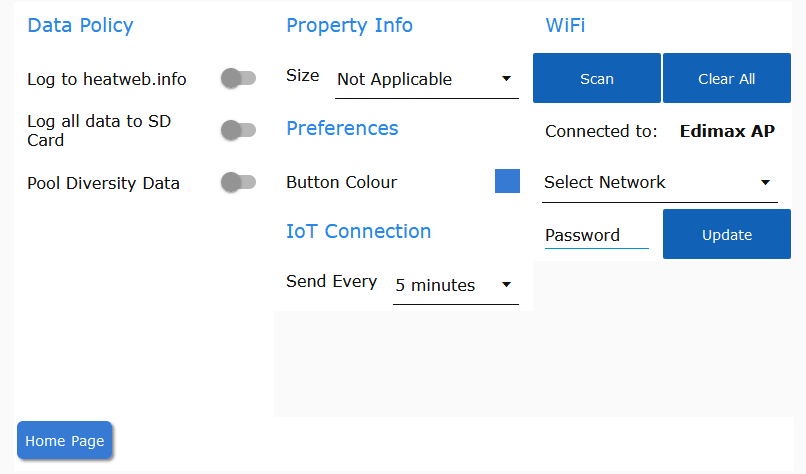
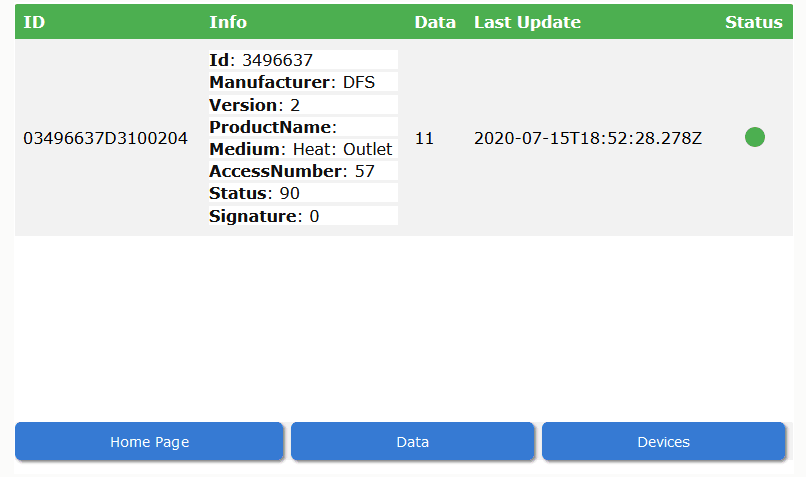
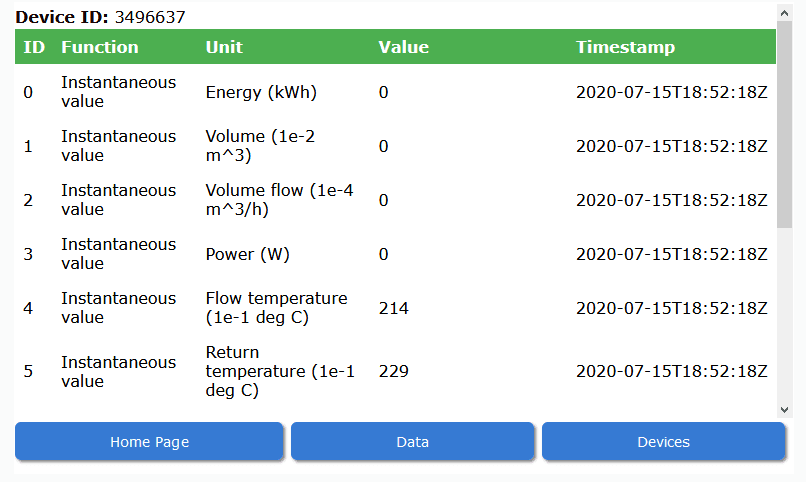
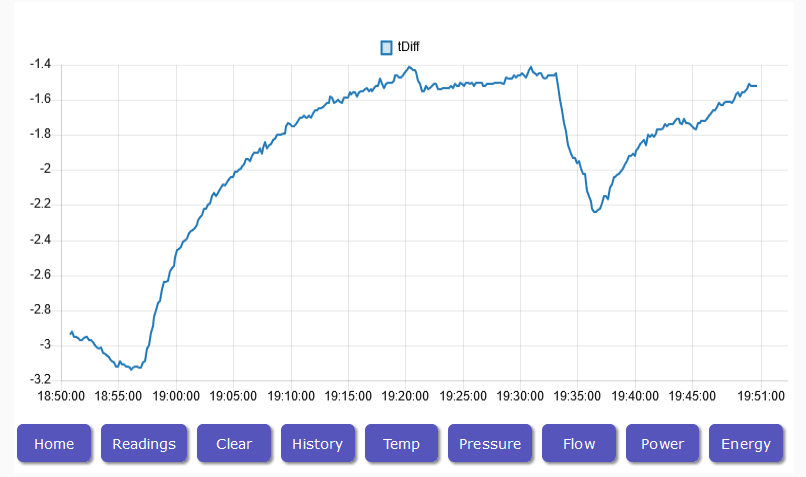
The substation control panel is fitted with a Node-RED touch screen controller, to provide local management functions and access to operational data.
Graphics
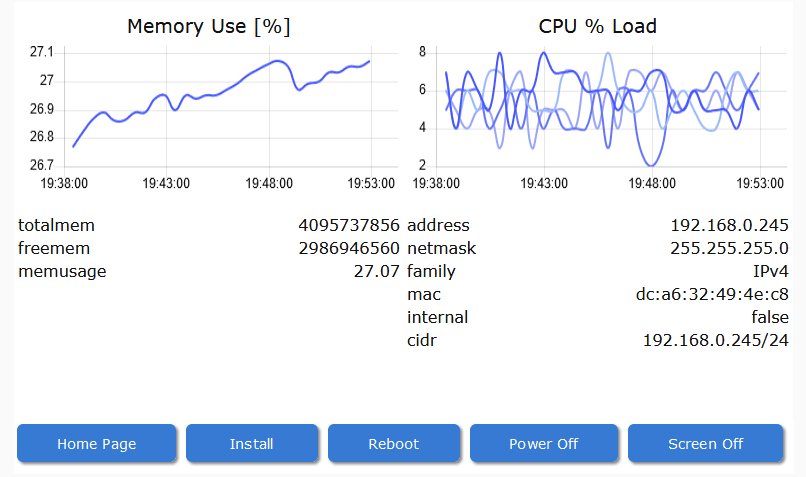
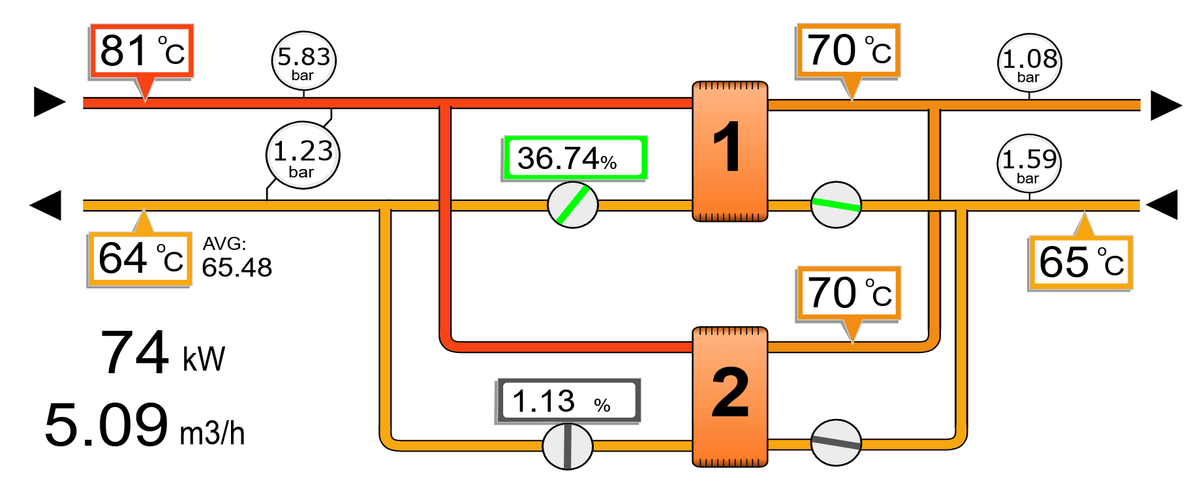
The Heatweb control platform provides a graphics engine for delivering a realtime graphical dashboard - realtime in the sense of 10s screen updates typically.
The graphics are created using any standard software package capable of editing SVG image files - the web standard for vector graphics.
Settings
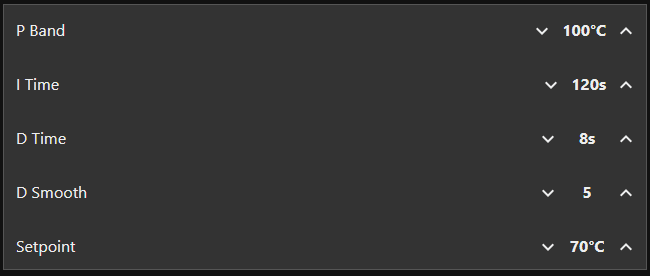
The Node-RED Dashboard provides a Settings screen where operational settings (PID parameters and setpoint) can be altered. They can also be altered through the appropriate MQTT set topic.
Alarms
Alarm Topics
Alarms are handled through MQTT data topics with a data type alarm, such as:
ihiu/subSt/phex1/alarm/tCo = ok
Alarms are summed up via the stat/state topic for a device. If no alarms are present the state will be ok, or if the device has a run mode the state will be on or off. If alarms are present but the system is still running, then the state will be warning, and may also include some descriptive text. If alarms are present that prevent operation then the state will be alarm.
The total number of alarms is also presented under stat/alarms, and the total number of warning under stat/warnings.
Viewing Alarms
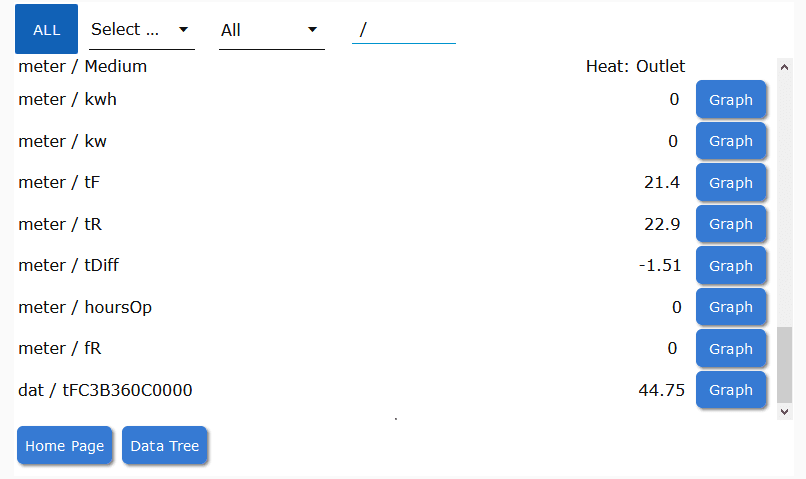
The Node-RED Dashboard lists all MQTT data with simple filtering options, including one for alarms. This allows all device alarms to be viewed as follows:
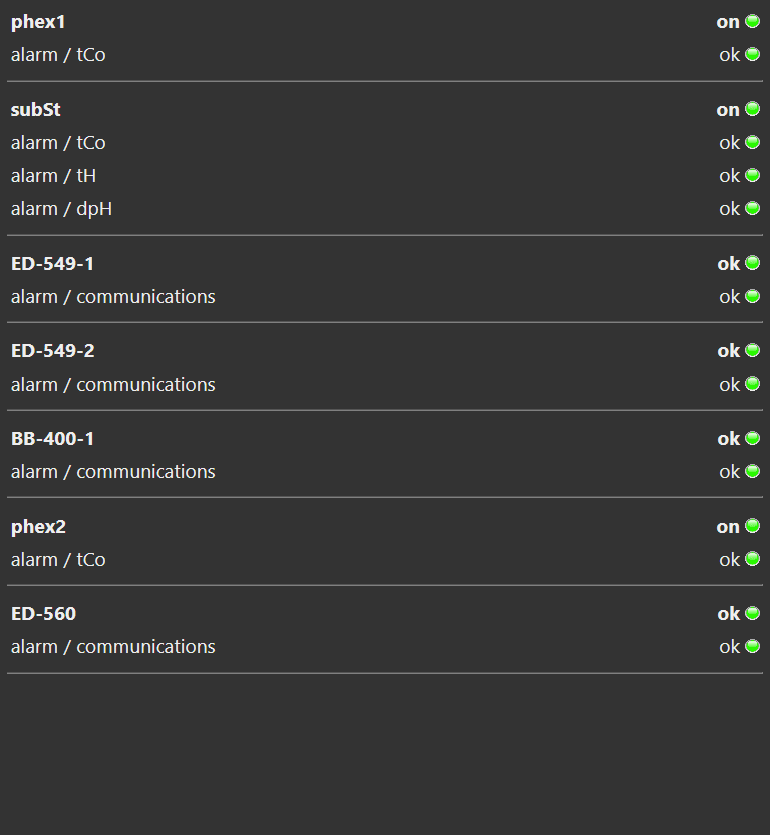
A button is provided to clear all current alarms. Alarms are generally cleared automatically if the alarm conditions dissappear, however alarms without a reset condition will require manually clearing. Once cleared, if the conditions for any alarms are still present they will return.

Alarm Management
Alarms are managed through a JSON data structure stored in Node-RED memory in global.alarms and defined on the Alarms flow.
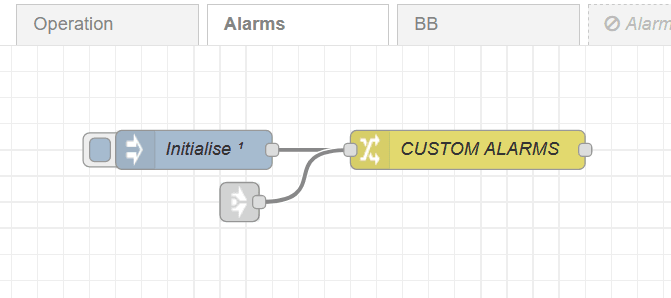
There is a JSON Editor provided to allow the alarms to be edited directly.
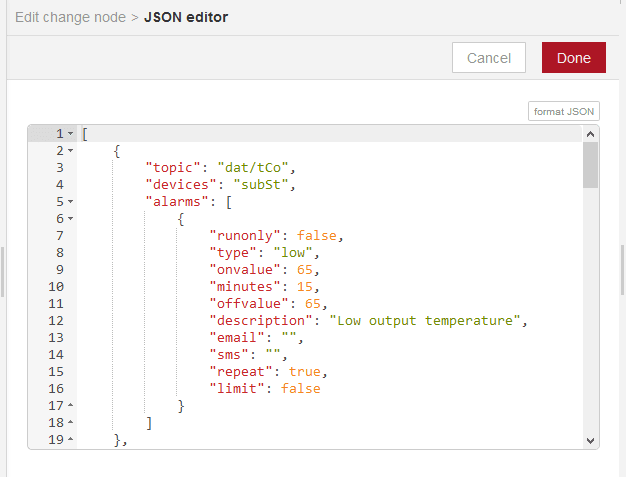
The default alarm setup will be similar to that detailed below. Description of fields are as follows:
topic: The MQTT topic (group/key) the alarms is linked to.
devices: A comma seperated list of device IDs the alarms is linked to.
runonly: If the alarm only applies if the device is running.
type: The type of alarm - low or high level.
onvalue: The alarm trigger value.
minutes: How long the alarm trigger is present before the alarm activates.
offvalue: The reset value for the alarm.
description: The alarm description.
email: Comma seperated list of email addresses the alarm is emailed to.
sms: Comma seperated list of email addresses the alarm is SMS texted to.
repeat: Does the alarm repeat.
limit: Is the total number of alarm messages limited (false or number).
[
{
"topic": "dat/tCo",
"devices": "subSt",
"alarms": [
{
"runonly": false,
"type": "low",
"onvalue": 65,
"minutes": 15,
"offvalue": 65,
"description": "Low output temperature",
"email": "",
"sms": "",
"repeat": true,
"limit": false
}
]
},
{
"topic": "dat/tCo",
"devices": "phex1,phex2",
"alarms": [
{
"runonly": true,
"type": "low",
"onvalue": 65,
"minutes": 15,
"offvalue": 66,
"description": "low output temperature",
"email": "",
"sms": "",
"repeat": true,
"limit": false
},
{
"type": "high",
"onvalue": 90,
"minutes": 3,
"offvalue": 85,
"description": "high output temperature",
"email": "",
"repeat": true,
"limit": false
}
]
},
{
"topic": "dat/tH",
"devices": "subSt",
"alarms": [
{
"runonly": true,
"type": "low",
"onvalue": 75,
"minutes": 15,
"offvalue": 76,
"description": "low supply temperature",
"email": "",
"sms": "",
"repeat": true,
"limit": false
},
{
"type": "high",
"onvalue": 95,
"minutes": 2,
"offvalue": 90,
"description": "high supply temperature",
"email": "",
"repeat": true,
"limit": false
}
]
},
{
"topic": "dat/dpH",
"devices": "subSt",
"alarms": [
{
"runonly": true,
"type": "low",
"onvalue": 0.5,
"minutes": 15,
"offvalue": 0.6,
"description": "low supply diff pressure",
"email": "",
"sms": "",
"repeat": true,
"limit": false
},
{
"type": "high",
"onvalue": 2.5,
"minutes": 5,
"offvalue": 2.4,
"description": "high supply diff pressure",
"email": "",
"repeat": true,
"limit": false
}
]
}
]